← Back to Palette

🎨 Palette Help & Feature Guide

Every tool in Palette, explained in a few steps with a short clip showing exactly what it looks like in action. Jump to any section below.

Getting Started

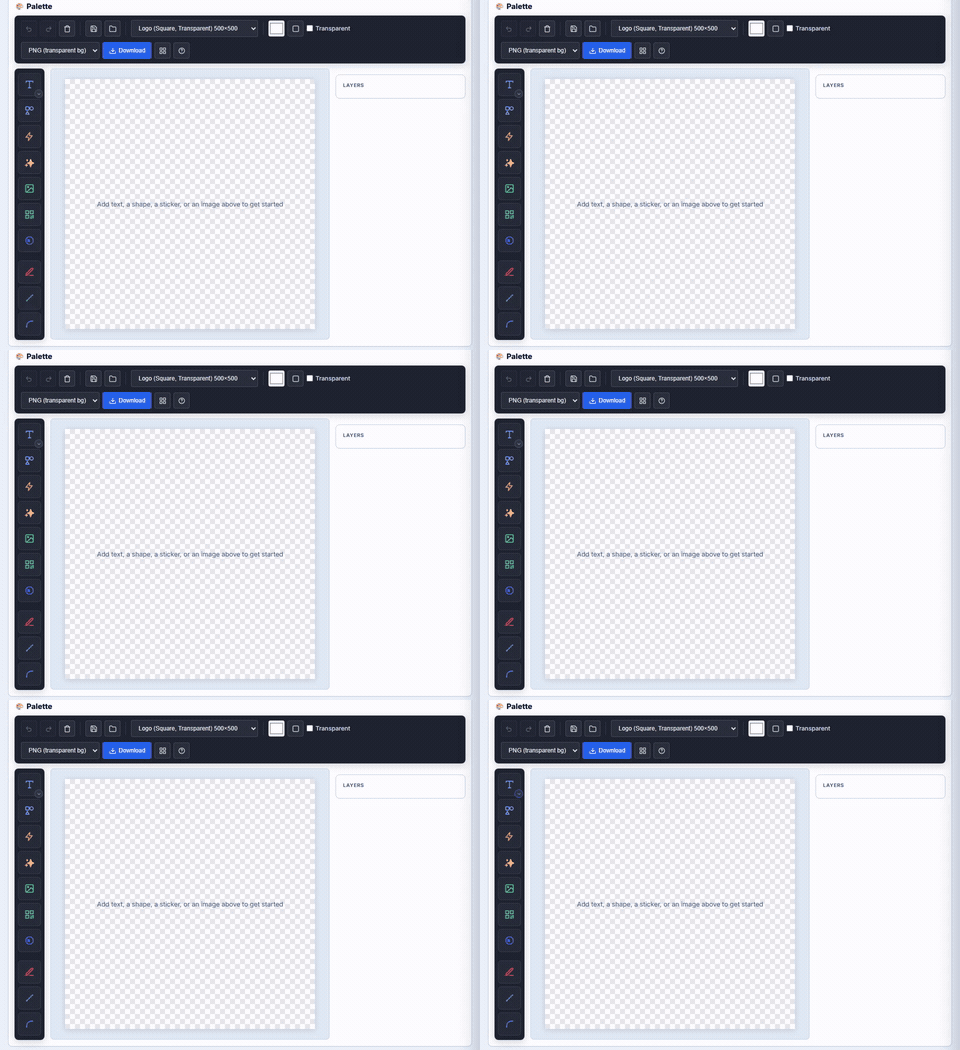
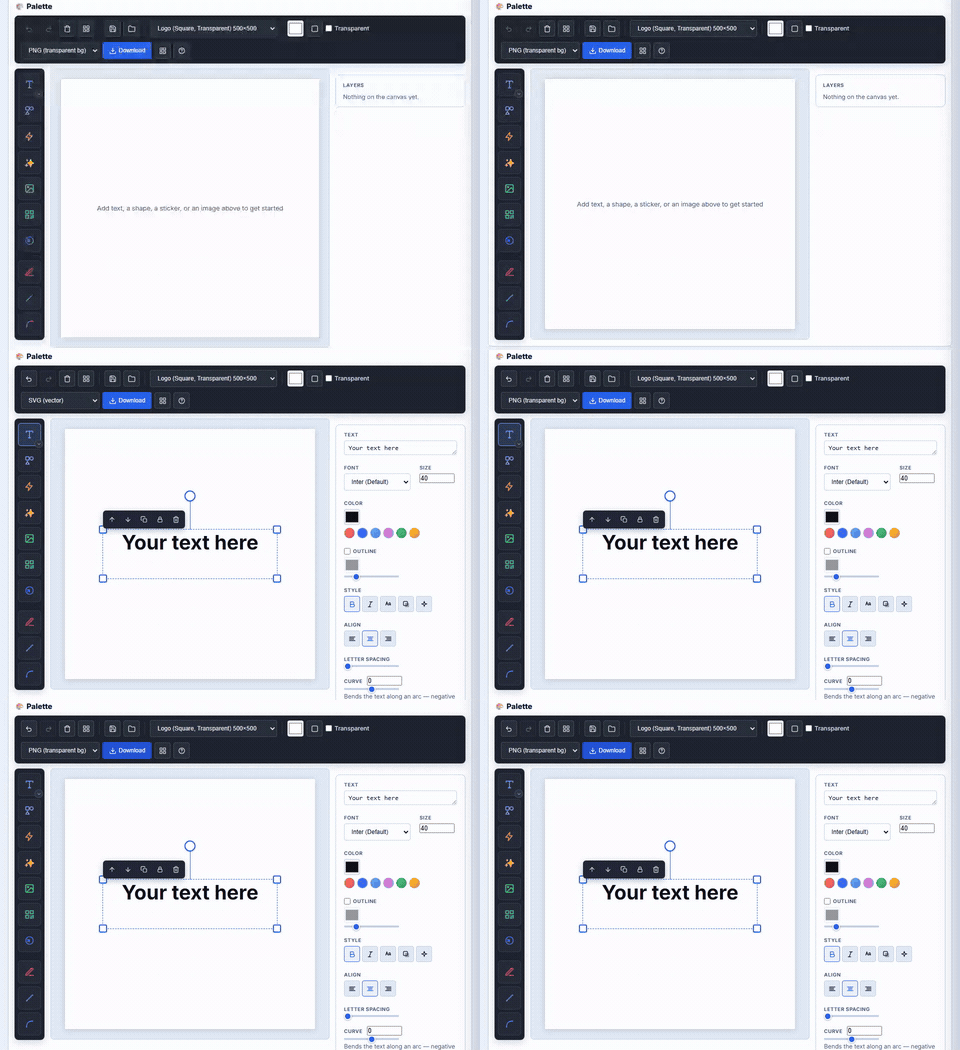
Choosing a canvas size and setting a background color or transparent background in Palette
Canvas size & background

Canvas size & background

  1. Pick a preset from the size dropdown at the top — logo, Instagram post, YouTube thumbnail, and more.
  2. Click the color swatch to set a solid background color.
  3. Check Transparent for no background at all — essential for logos and stickers.
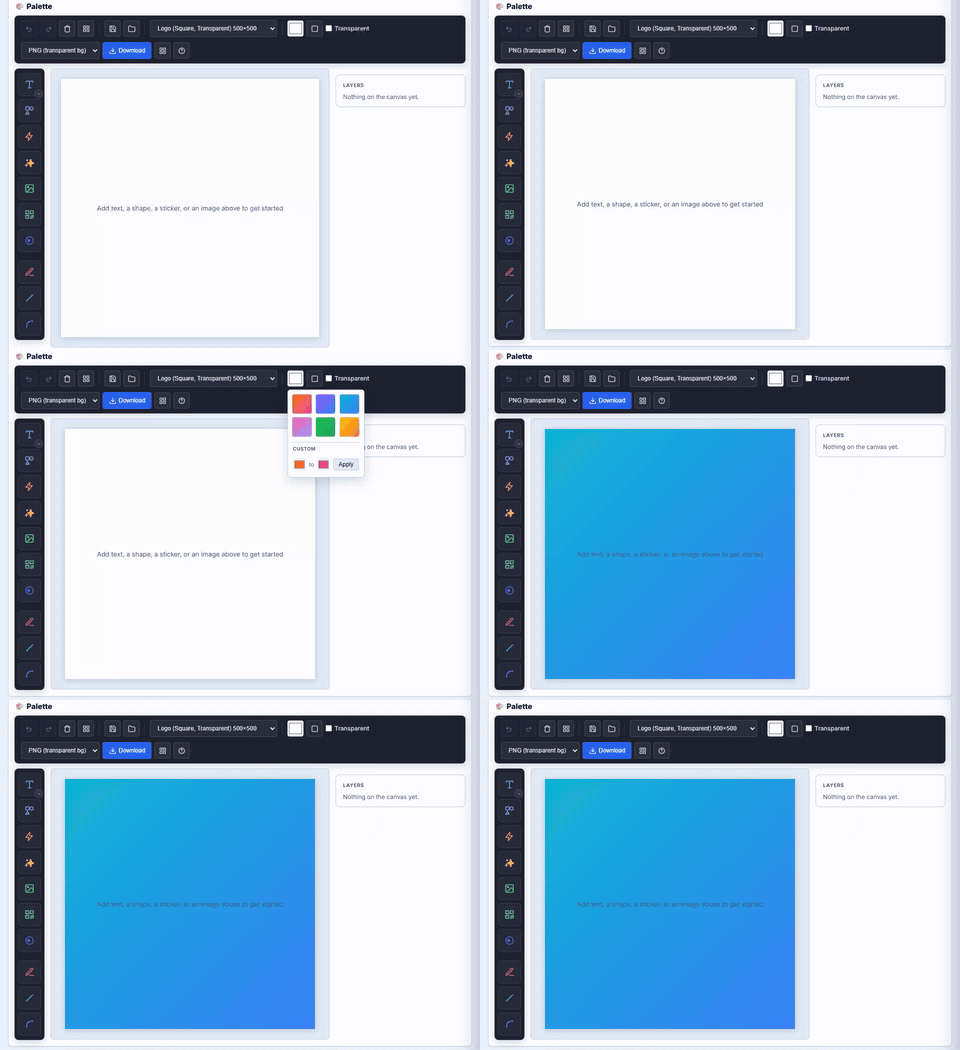
Applying a two-color gradient background in Palette
Gradient background

Gradient background

  1. Click the gradient icon next to the background color swatch.
  2. Pick one of the ready-made two-color gradient presets.

The background switches out of solid-color mode automatically.

Text

Adding a text element and editing its content and font in Palette
Add & style text

Add & style text

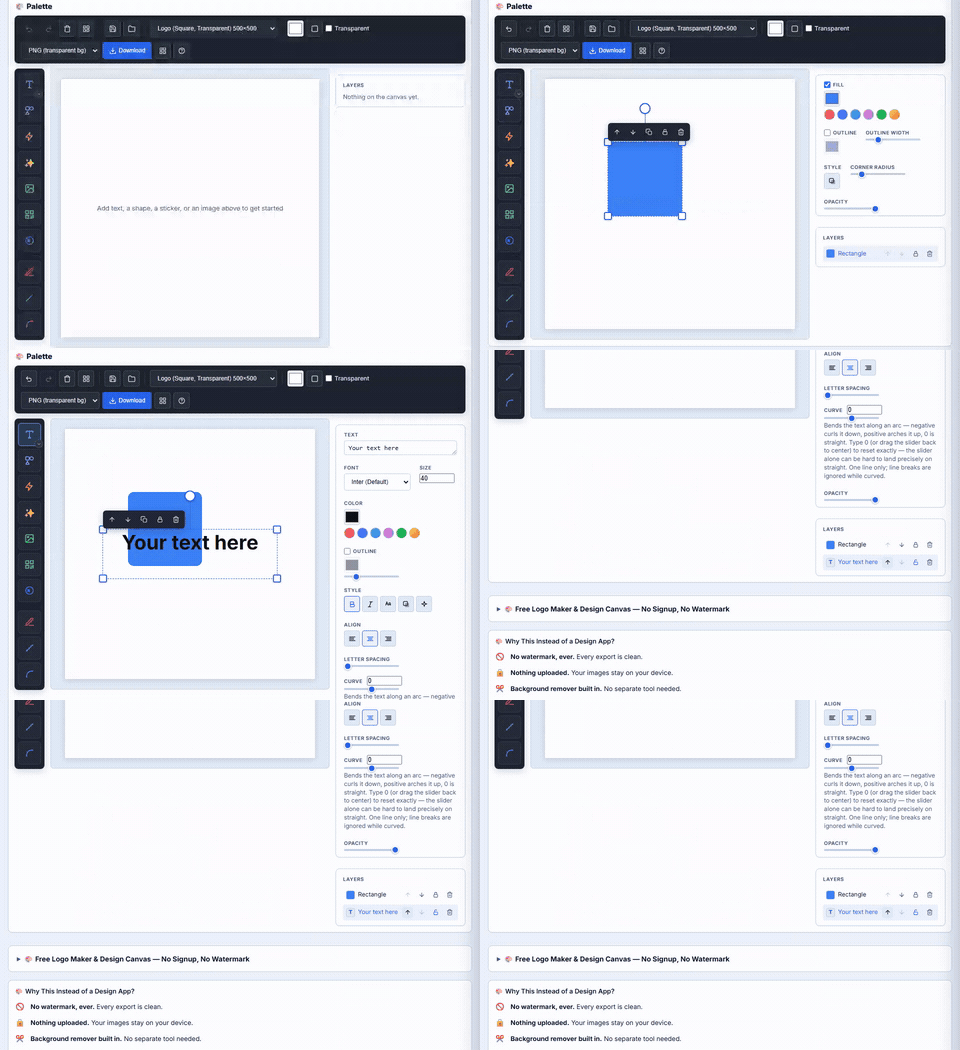
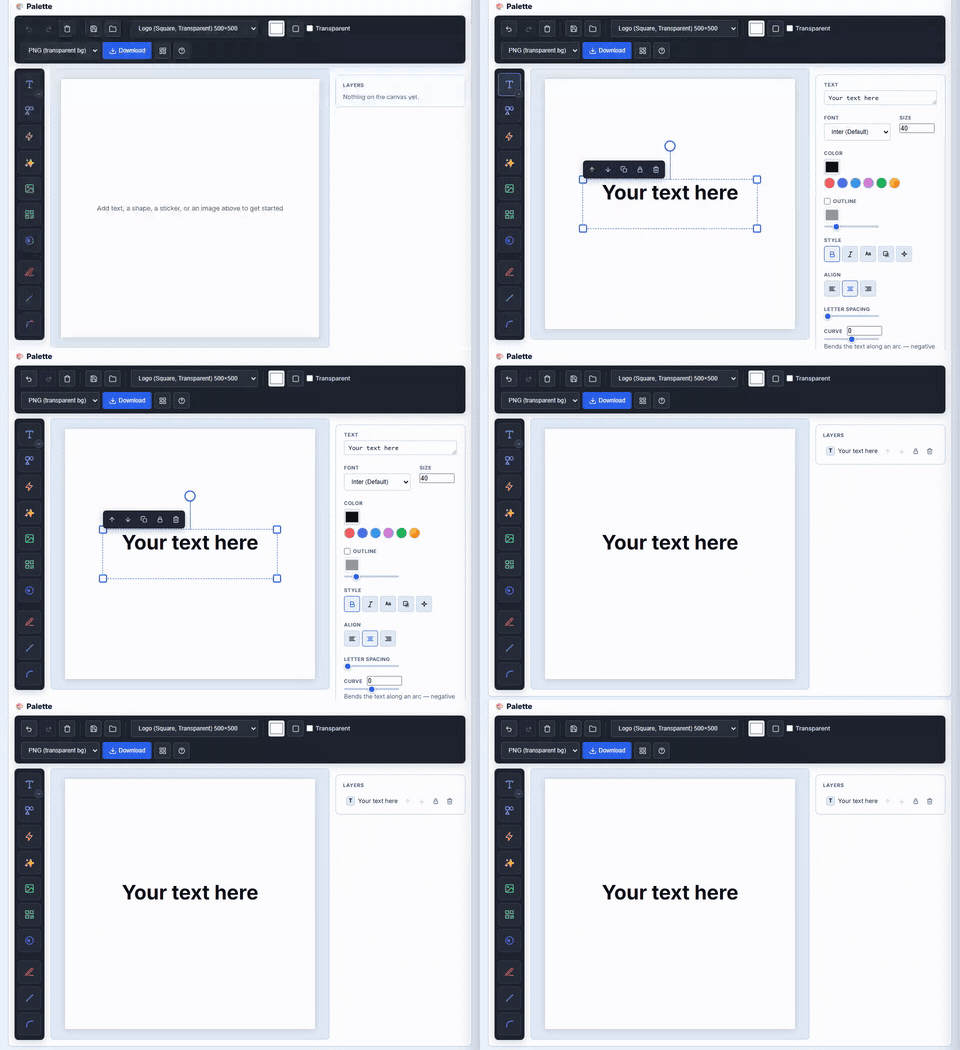
  1. Click the T button in the left rail to drop a text box onto the canvas.
  2. Type your wording into the Text field in the right-hand panel.
  3. Change the font, size, and color from that same panel, then drag the text anywhere on the canvas.
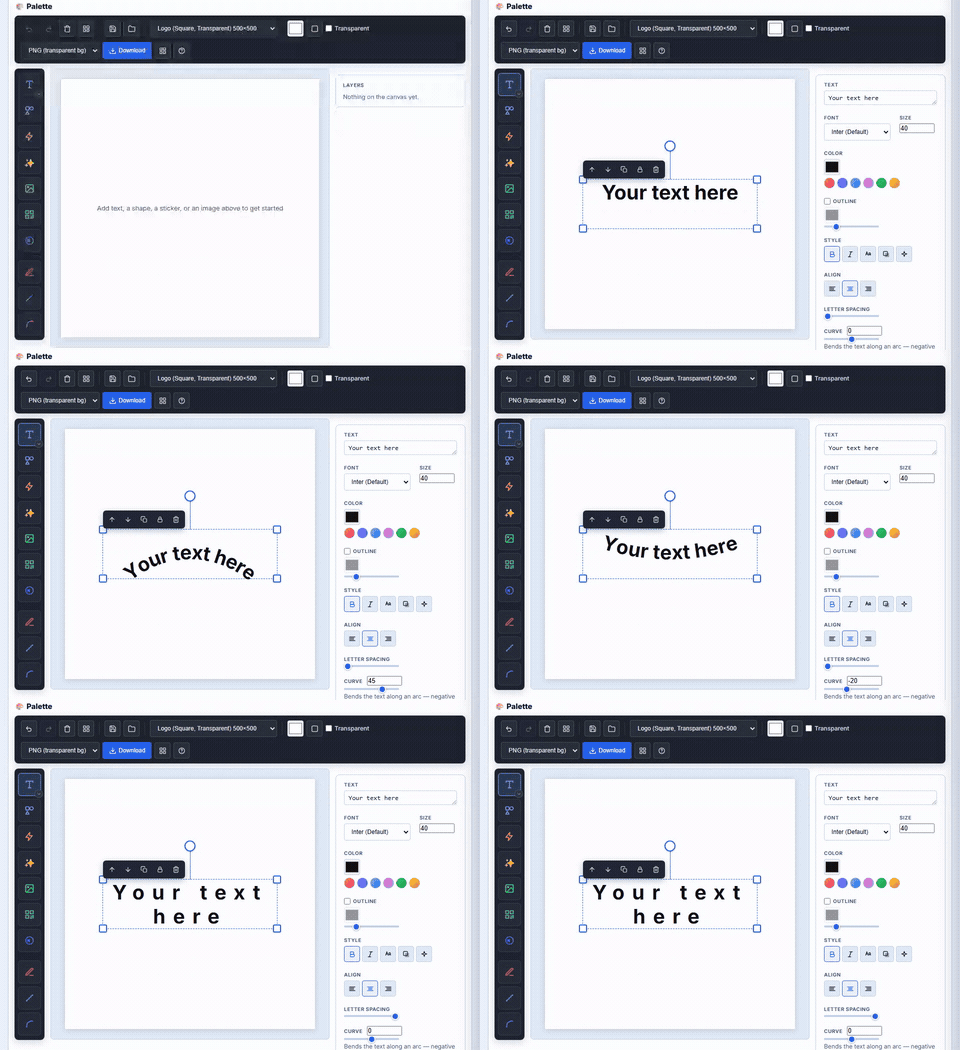
Arcing text along a curve and adjusting letter spacing in Palette
Curved text & letter spacing

Curved text & letter spacing

  1. Select a text element, then drag the Curve slider — positive arcs it upward, negative arcs it downward.
  2. Type an exact value in the number field beside the slider, or set it to 0 to go back to perfectly straight.
  3. Use the Spacing slider to open up letter spacing independently of the curve.
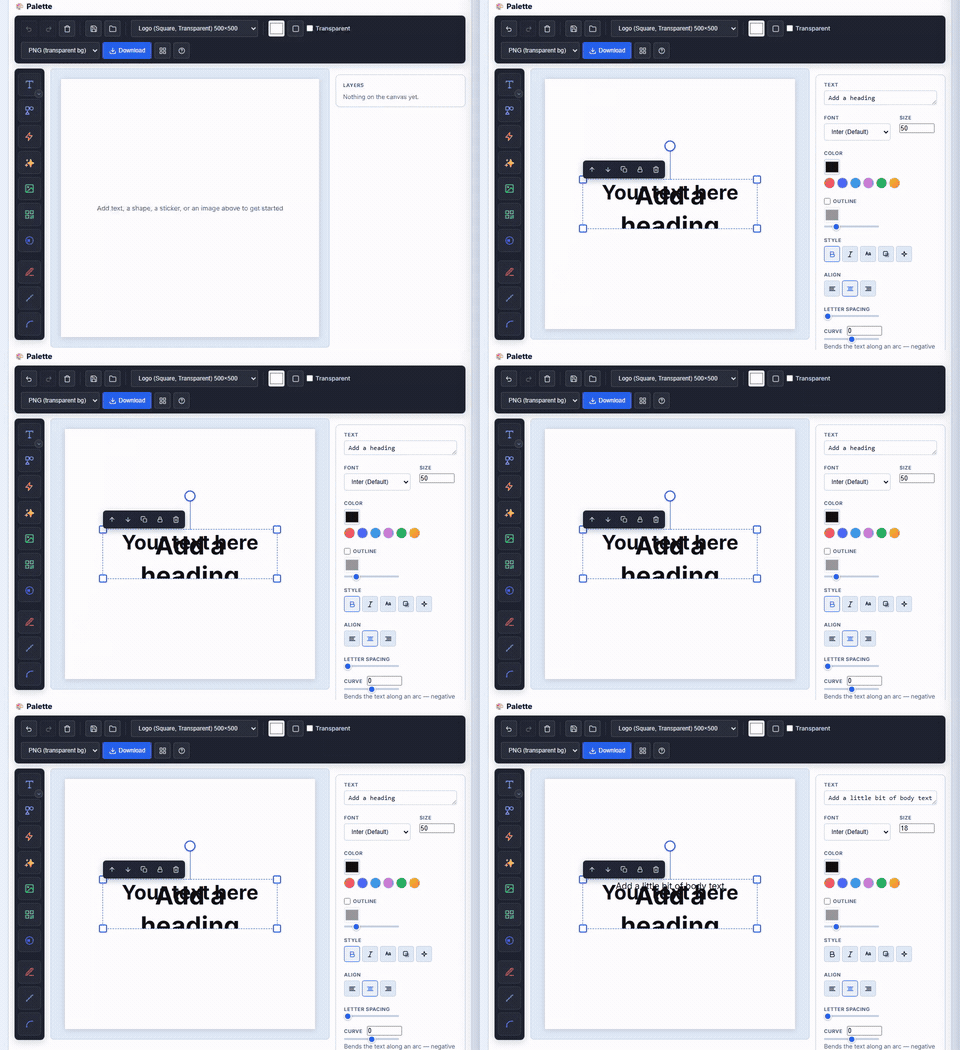
Applying a ready-made heading and subheading text style preset in Palette
Text style presets

Text style presets

  1. Click the small caret next to the Add Text button to open Text Styles.
  2. Pick a ready-made heading, subheading, or body style to instantly apply a matching font, size, and weight.
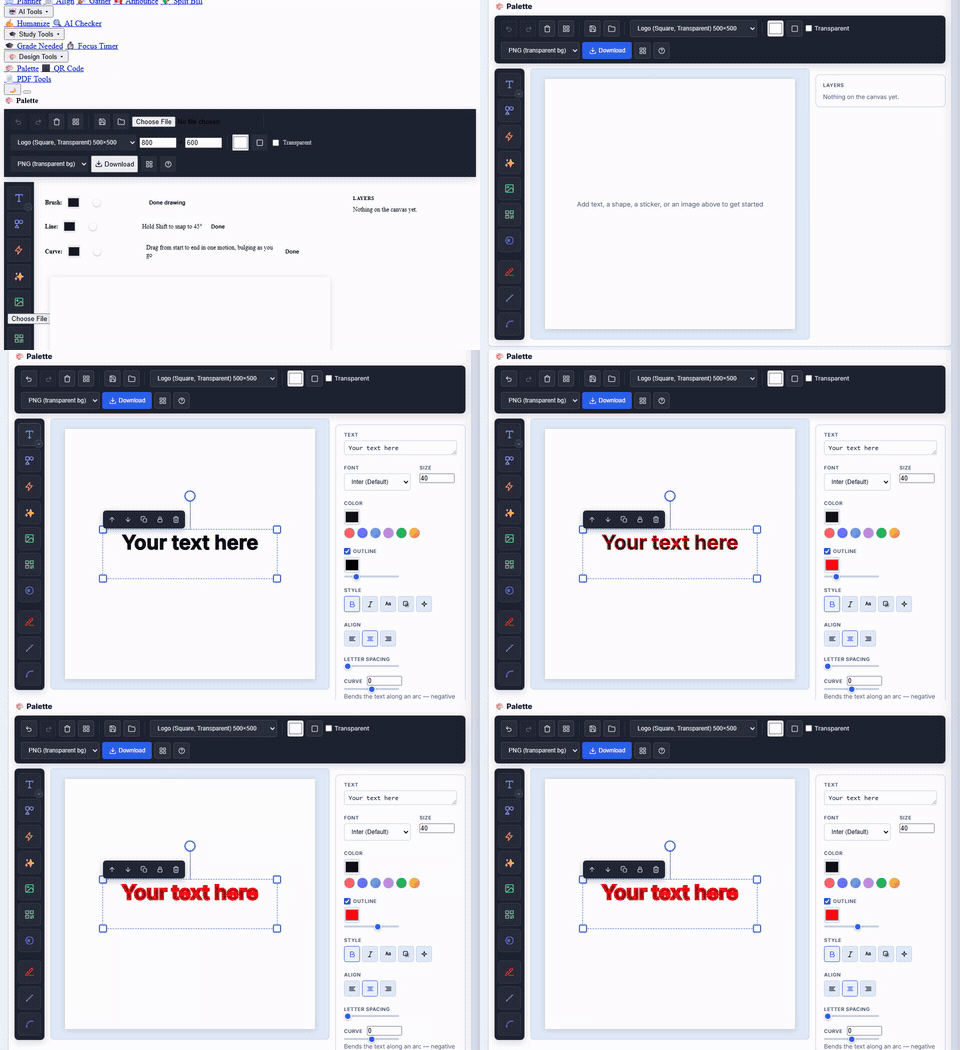
Adding an outline stroke around text in Palette
Text outline

Text outline

  1. With text selected, check Outline in the right panel.
  2. Pick an outline color and drag the width slider.

Useful for text placed over a busy background or photo.

Shapes & Drawing

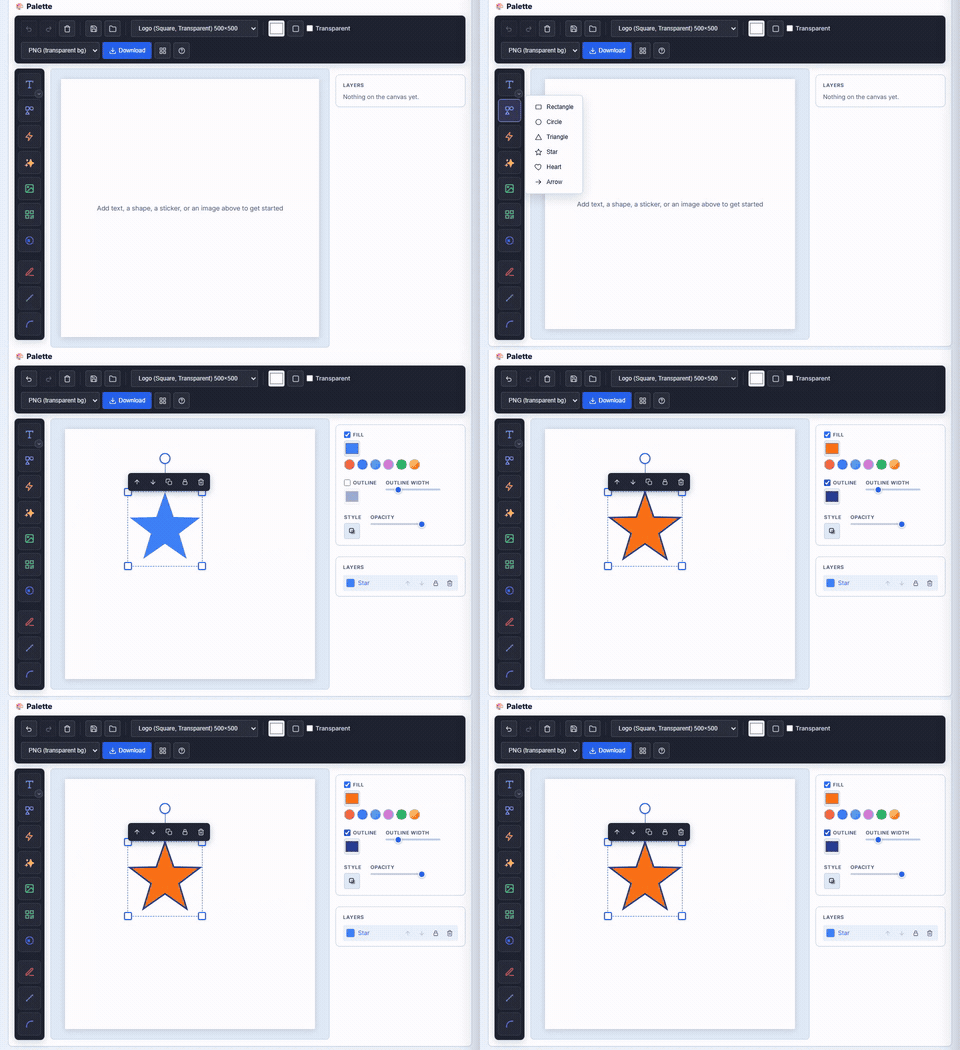
Adding a shape and styling its fill, outline, and corners in Palette
Add & style shapes

Add & style shapes

  1. Click the shape icon in the left rail and pick one — rectangle, circle, triangle, star, heart, or arrow.
  2. Set its fill color, add an outline, round its corners, or adjust opacity from the right panel.
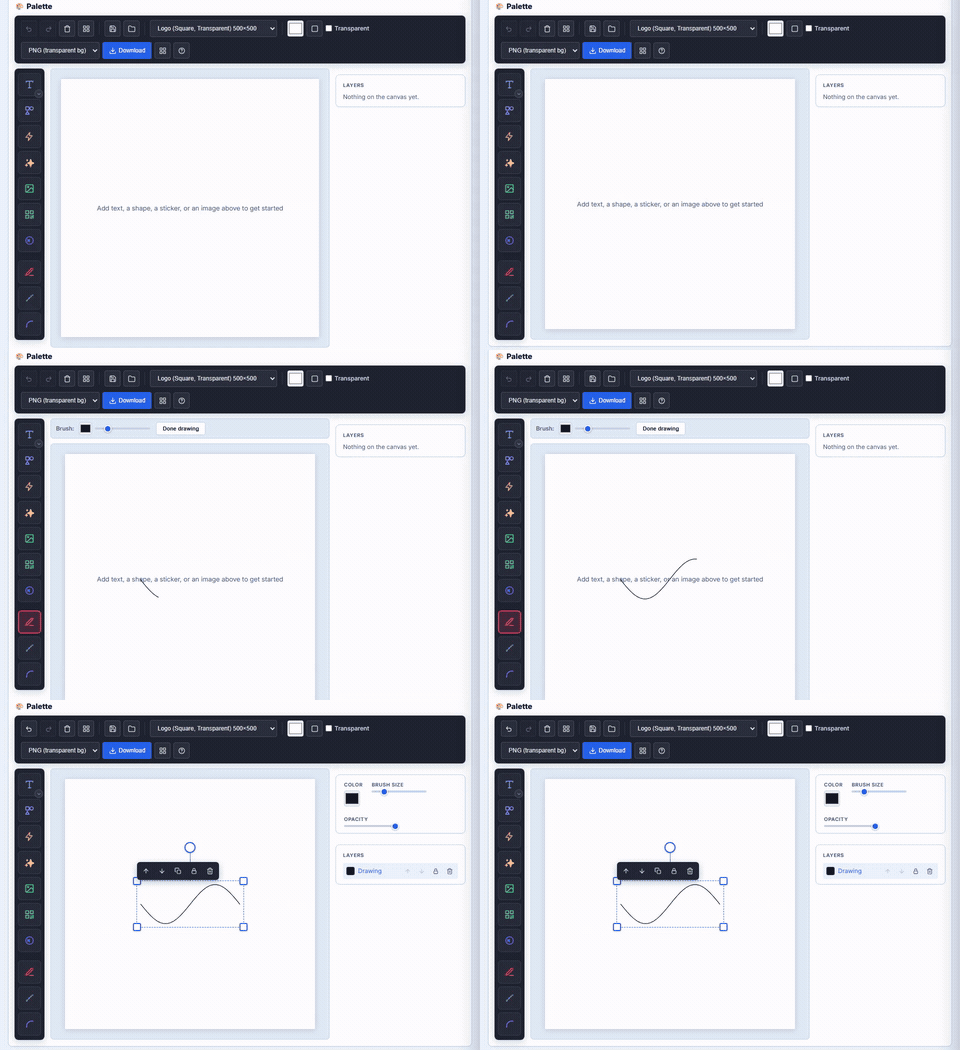
Freehand drawing a stroke on the canvas in Palette
Freehand draw

Freehand draw

  1. Click the pen icon in the left rail.
  2. Click and drag anywhere on the canvas to draw a freehand stroke.
  3. Pick a color and brush size from the toolbar above the canvas, then click Done drawing.
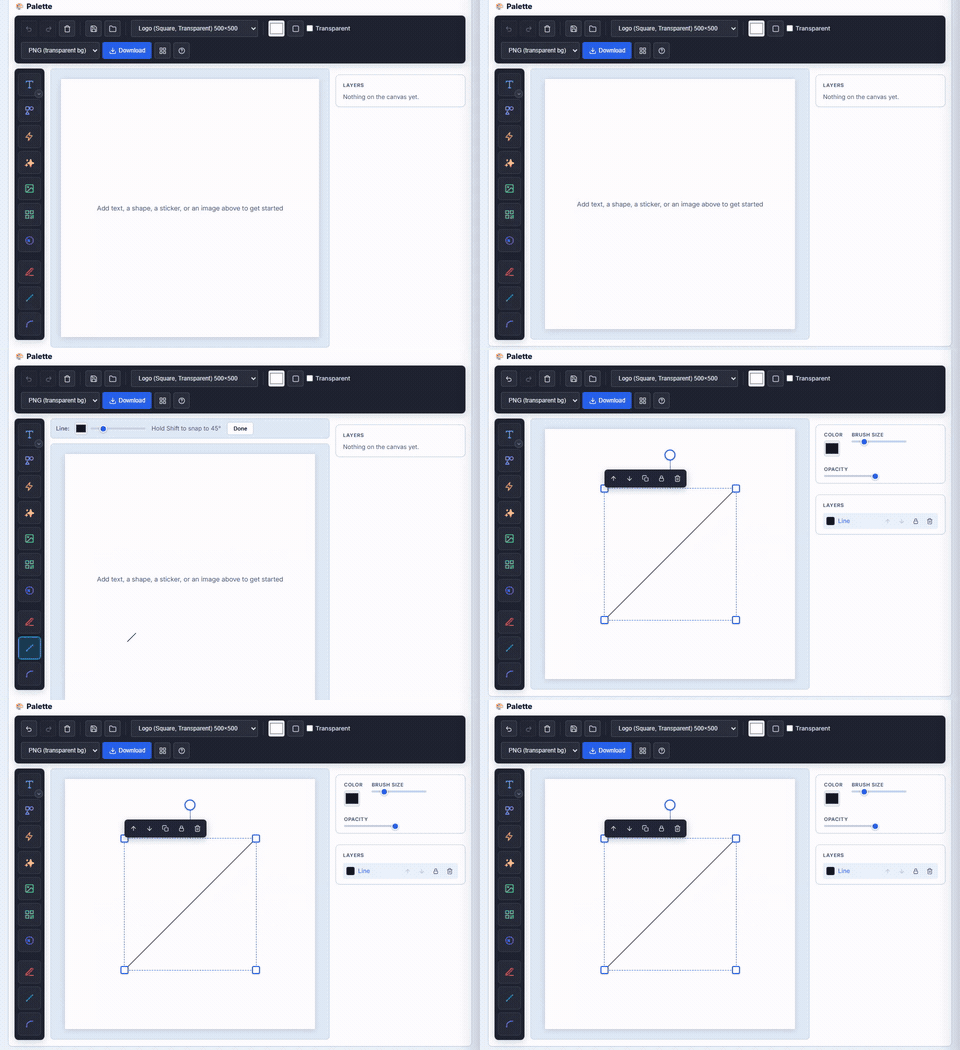
Drawing a straight line with the line tool in Palette
Straight line tool

Straight line tool

  1. Click the line icon, then drag from one point to another.
  2. Hold Shift while dragging to snap the line to 45° angles.
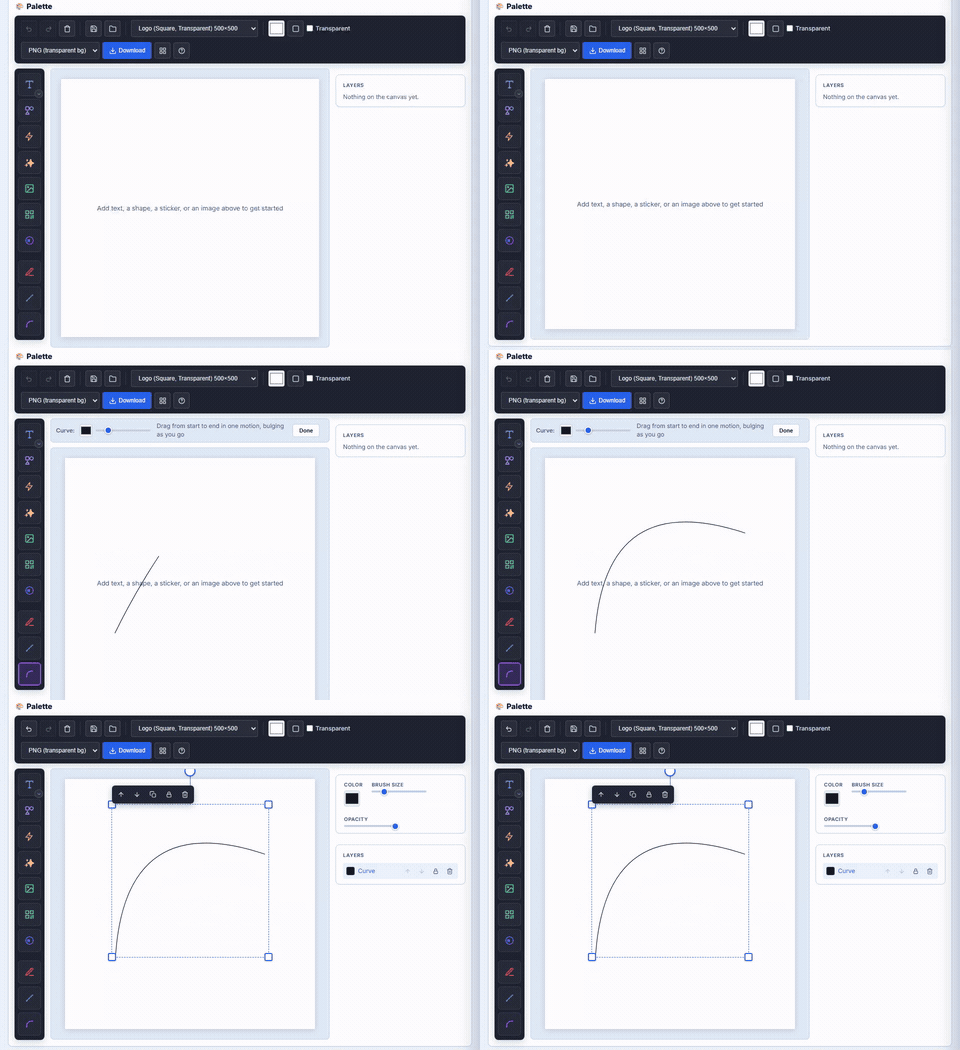
Drawing a smooth bezier curve with the curve tool in Palette
Curve (bezier) tool

Curve (bezier) tool

  1. Click the curve icon in the left rail.
  2. Drag in one smooth motion, bulging the path as you go — Palette fits a smooth curve through it.

Great for swooshes, ribbon banners, and underlines.

Graphics & Media

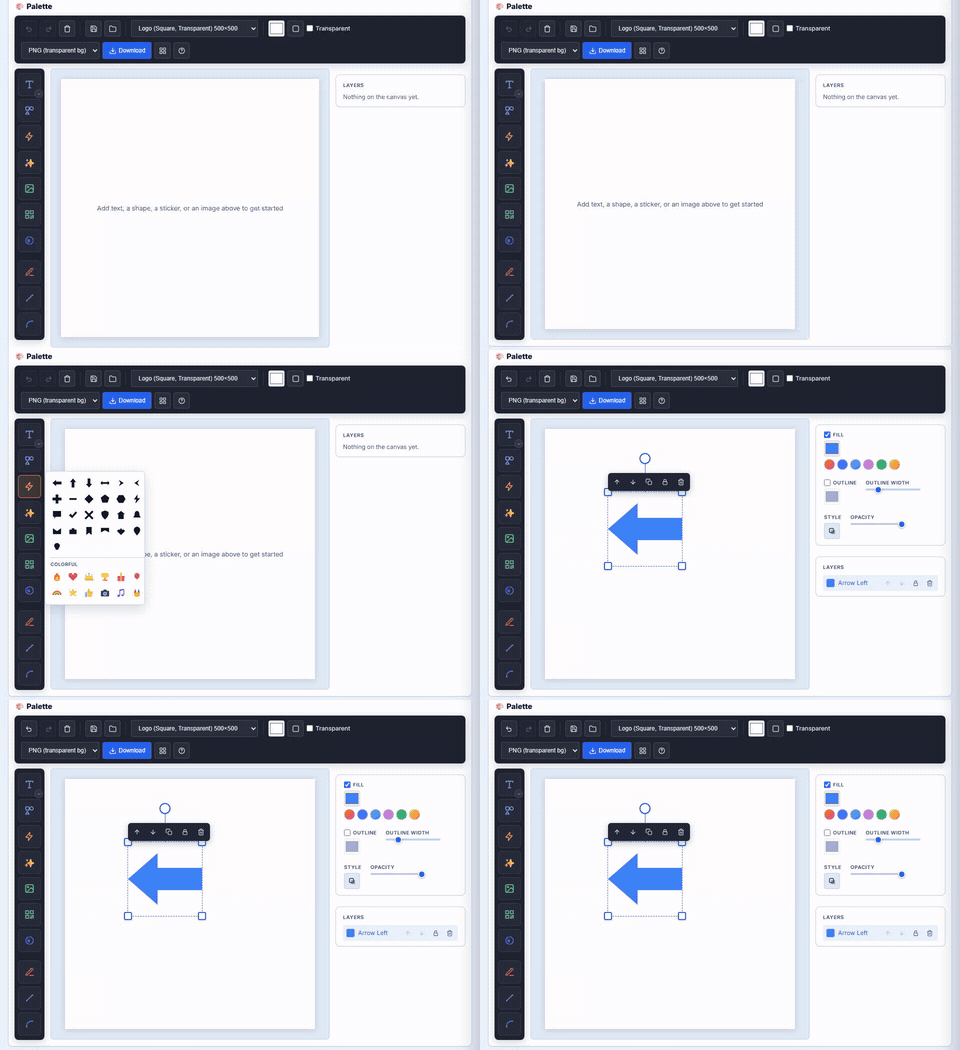
Adding a ready-made icon from the graphics library in Palette
Graphics library

Graphics library

  1. Click the graphics icon in the left rail to browse arrows, chevrons, and other ready-made icons.
  2. Click one to add it to the canvas.
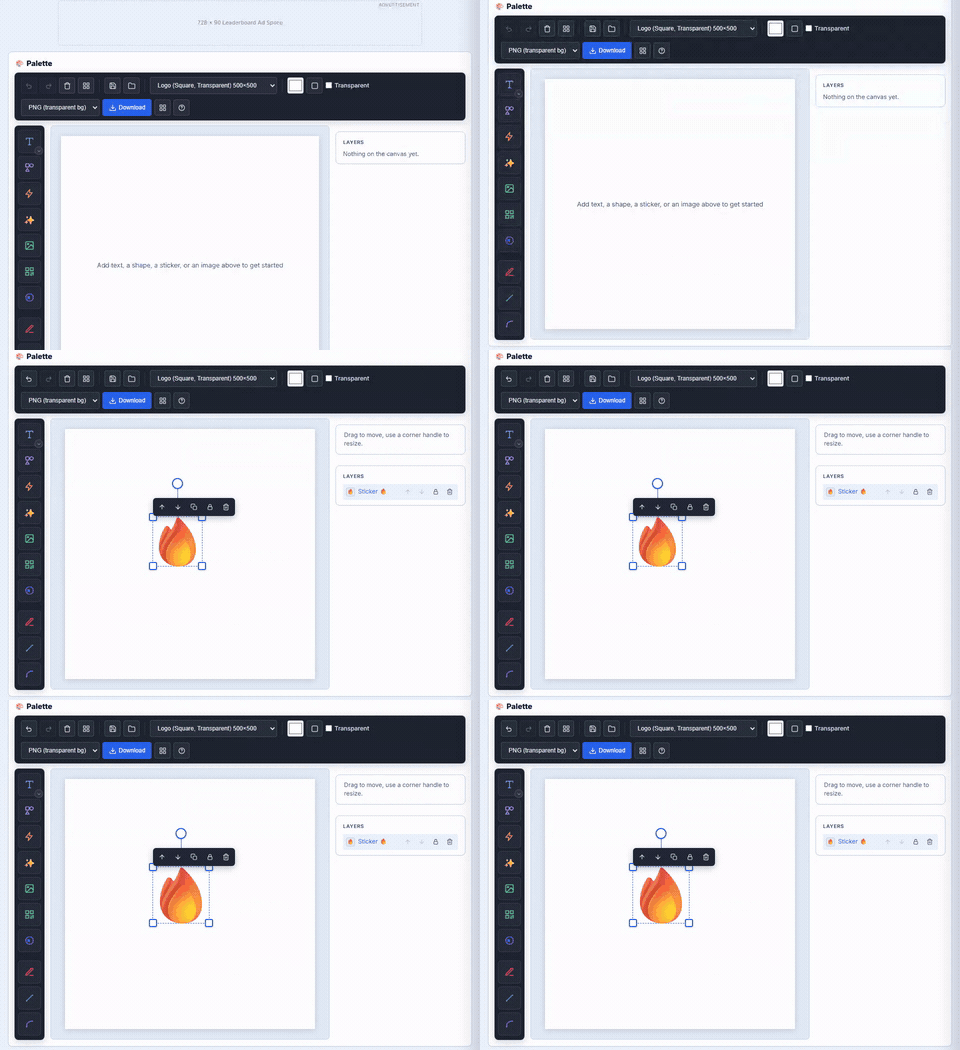
Adding an emoji sticker to the canvas in Palette
Stickers

Stickers

  1. Click the sticker icon for a grid of emoji-style stickers.
  2. Click one to drop it onto the canvas, then resize as needed.
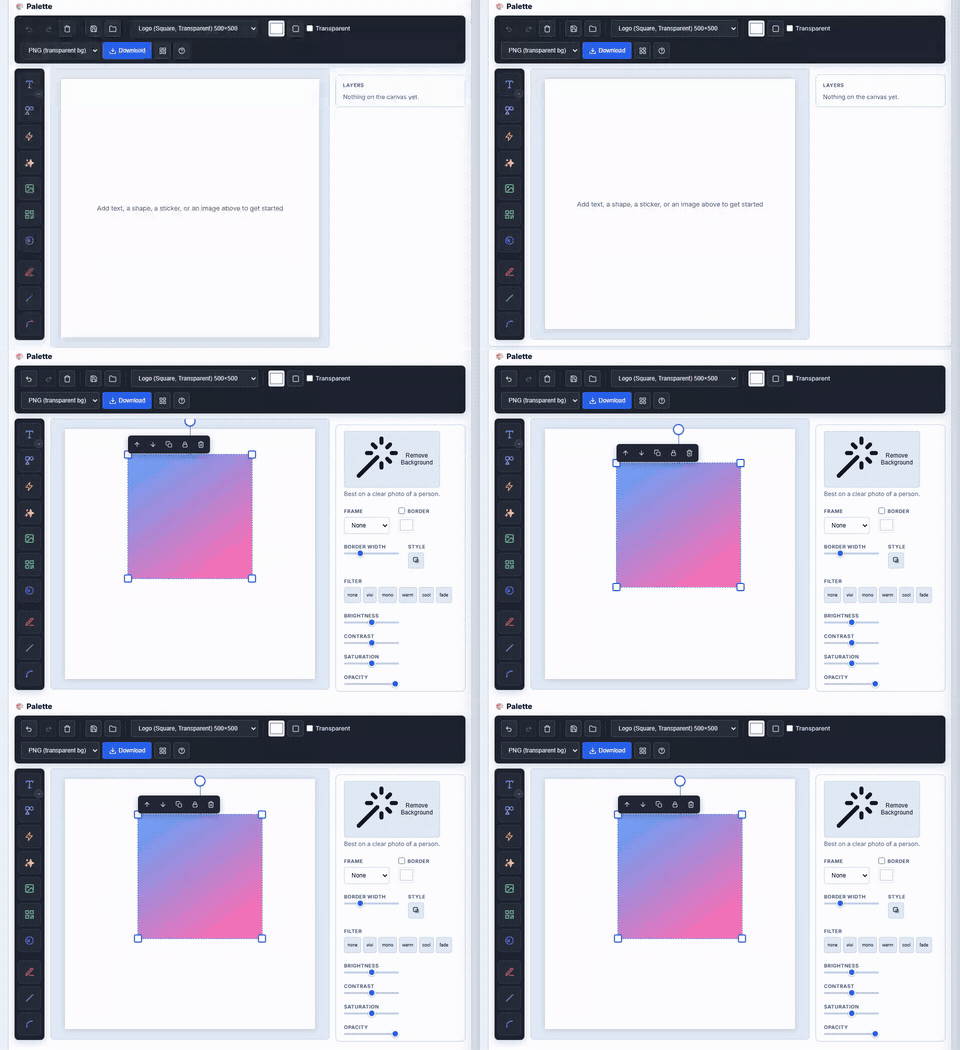
Uploading a photo and using the background remover in Palette
Add images

Add images

  1. Click the image icon to upload a photo from your device.
  2. Use the built-in AI background remover if you need to cut out the subject.

Nothing is uploaded to a server — your photo is processed entirely in your browser.

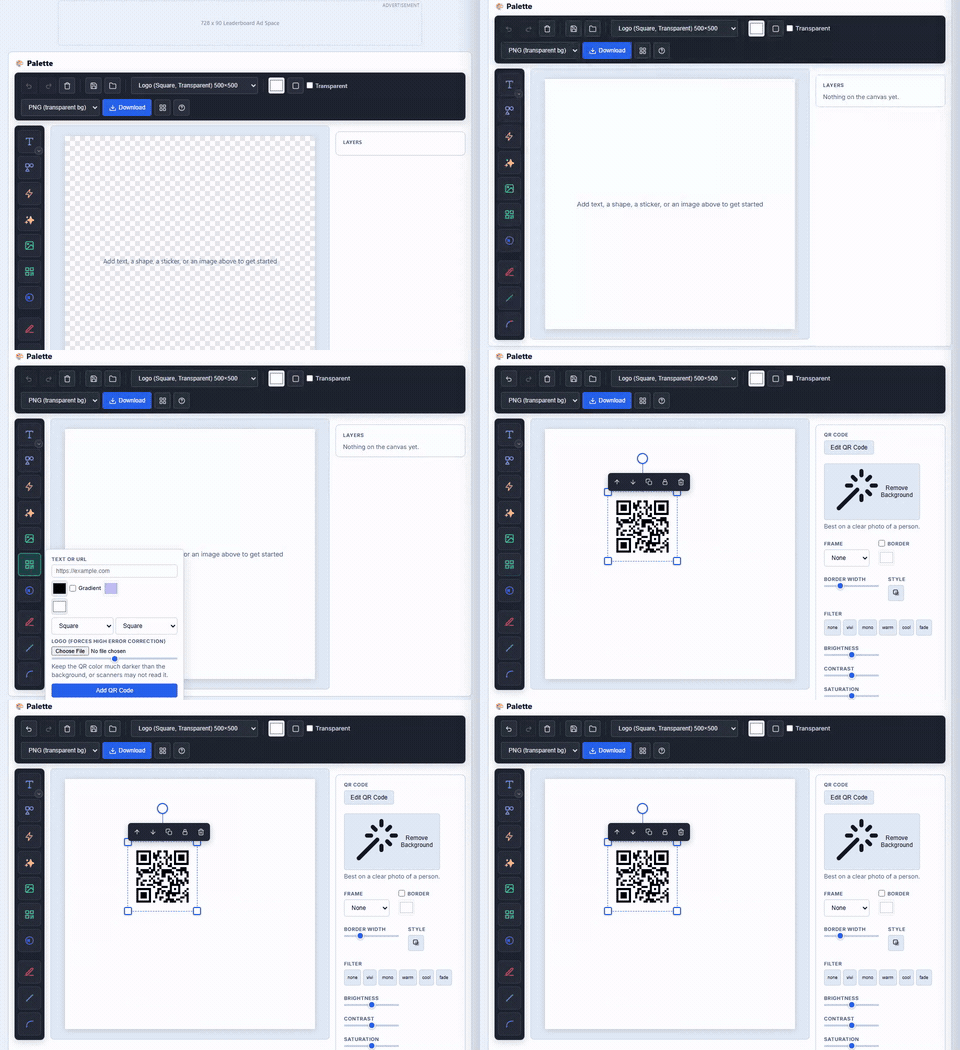
Generating and adding a custom QR code in Palette
QR codes

QR codes

  1. Click the QR icon and type the text or URL the code should point to.
  2. Optionally set custom colors, dot/eye styles, or a center logo.
  3. Click Add QR Code.
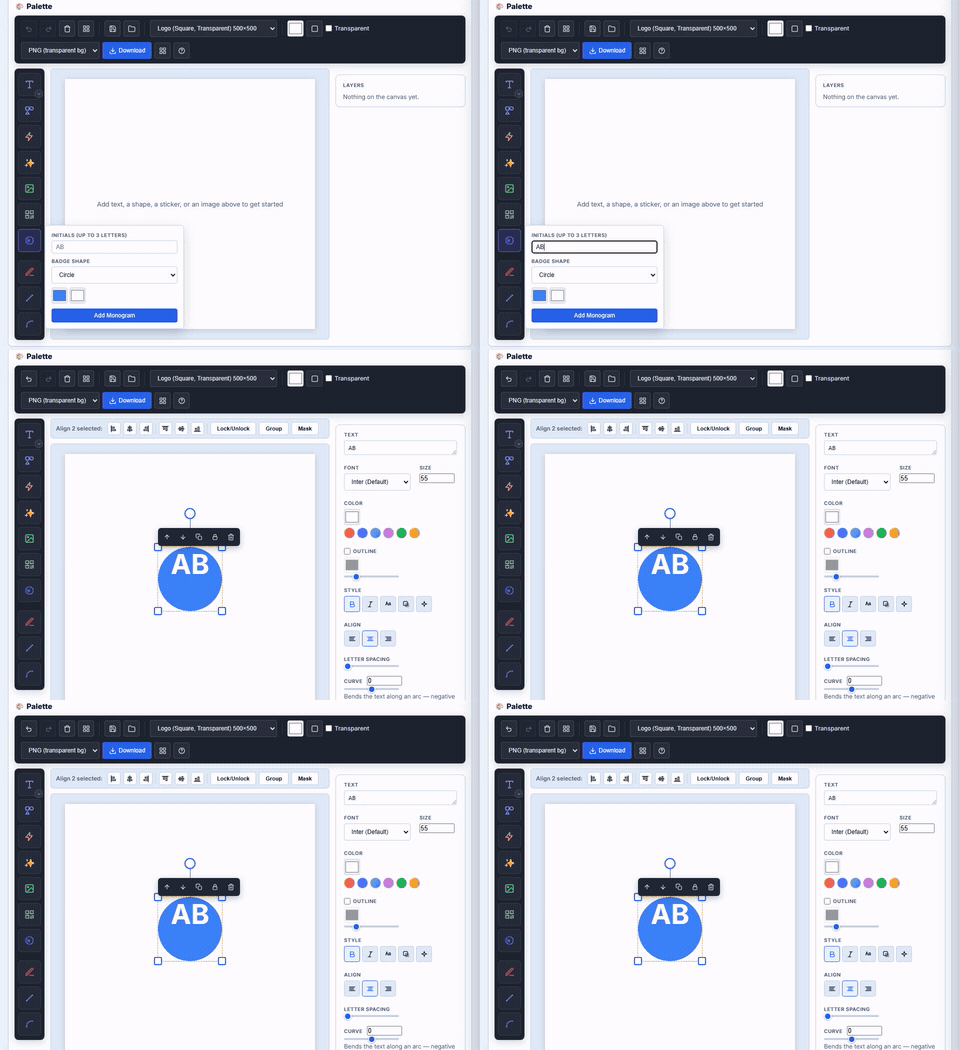
Generating an initials monogram badge in Palette
Monogram

Monogram

  1. Click the monogram icon and type up to 3 initials.
  2. Click Add Monogram for an instant circular monogram badge.

Arranging Elements

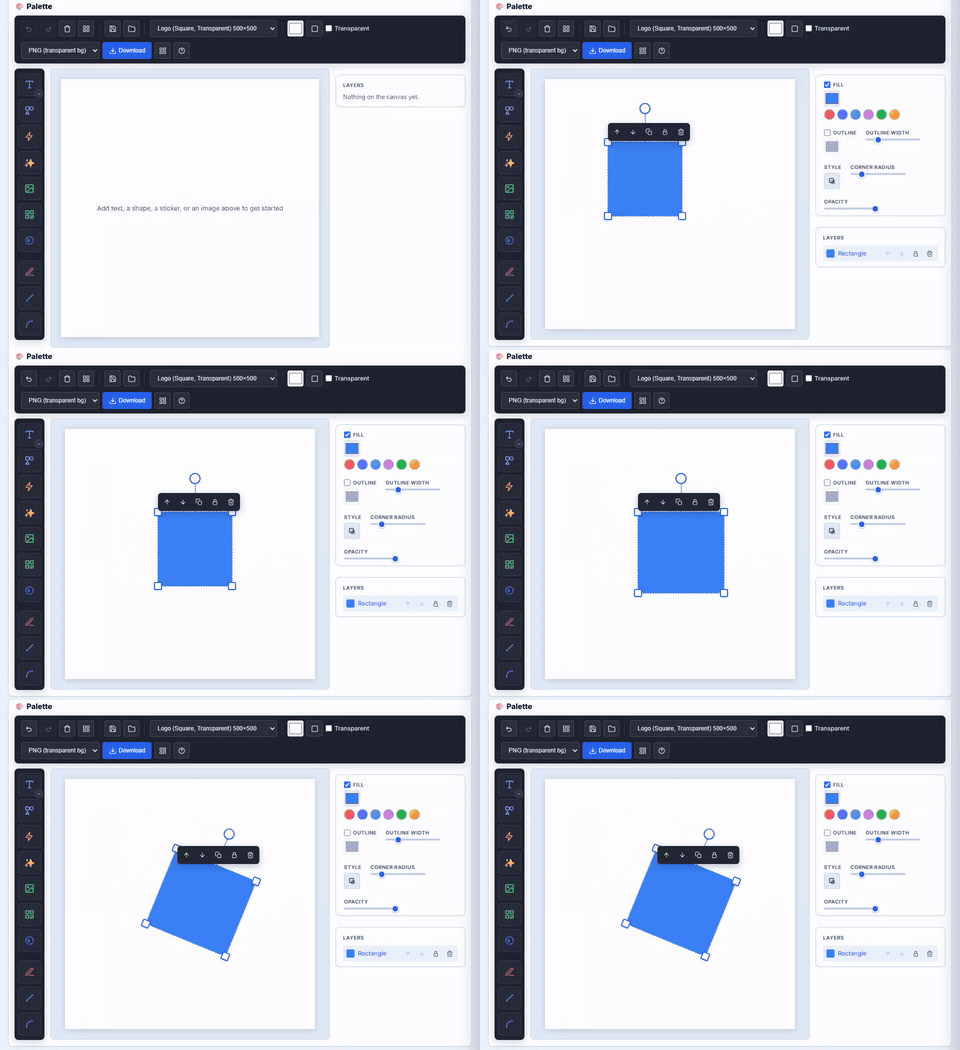
Moving, resizing, and rotating an element in Palette
Move, resize & rotate

Move, resize & rotate

  1. Click any element to select it, then drag from its middle to move it.
  2. Drag a corner handle to resize it.
  3. Drag the small circle above it to rotate it freely.
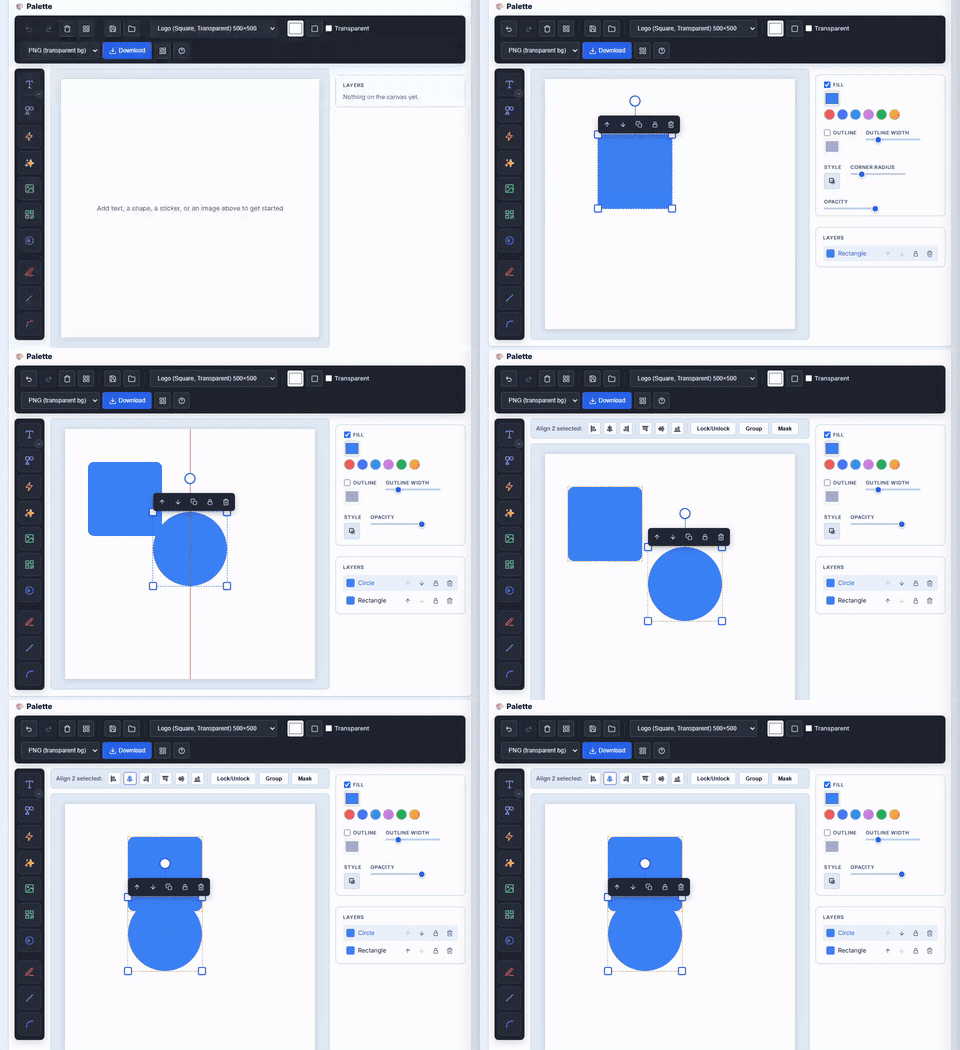
Multi-selecting elements and aligning them in Palette
Multi-select, align & distribute

Multi-select, align & distribute

  1. Shift-click (or Ctrl-click) two or more elements to select them together — or on touchscreen and mobile, tap the Multi-Select toggle button in the top bar or press and hold any layer.
  2. Use the toolbar that appears above the canvas to align them (left/center/right, top/middle/bottom) or distribute spacing evenly.
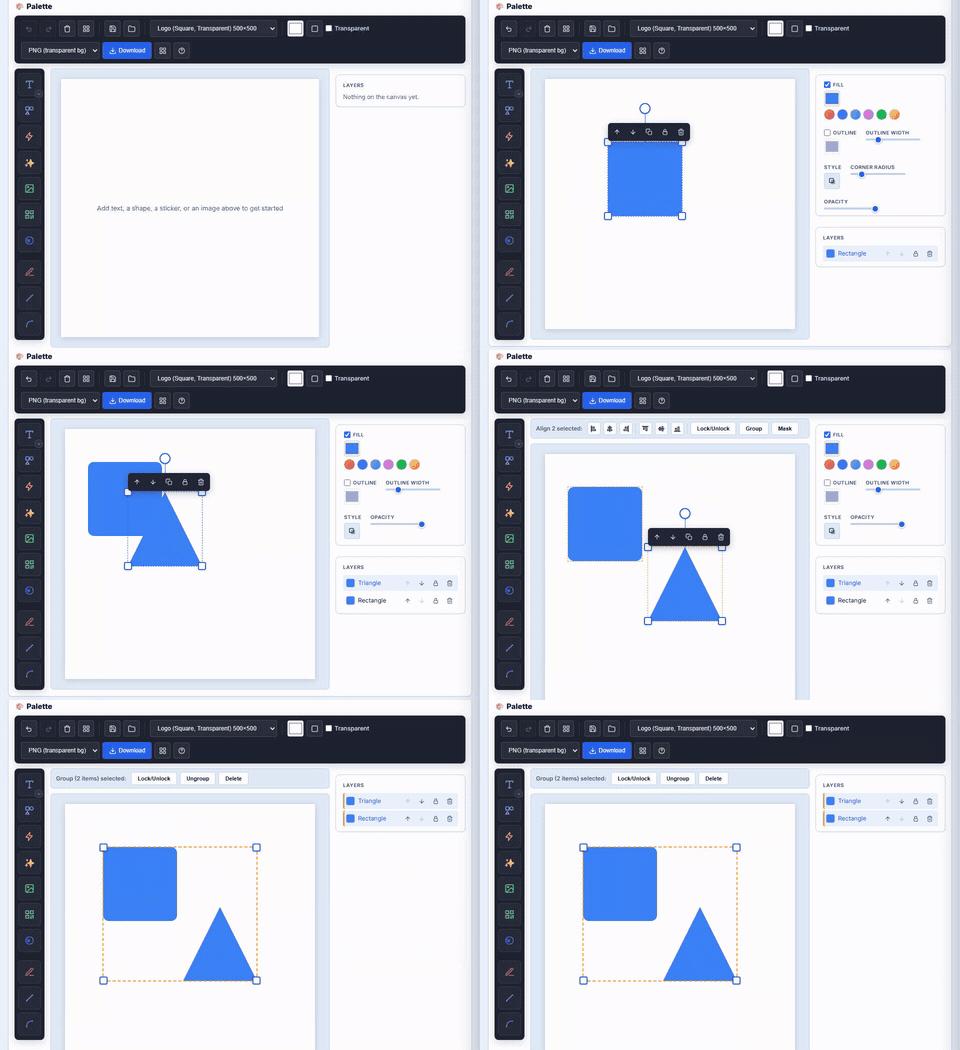
Grouping multiple elements into one movable unit in Palette
Grouping

Grouping

  1. With 2 or more elements multi-selected, click Group.
  2. Move, resize, or rotate the whole group as one unit.
  3. Click Ungroup to split the elements back apart.
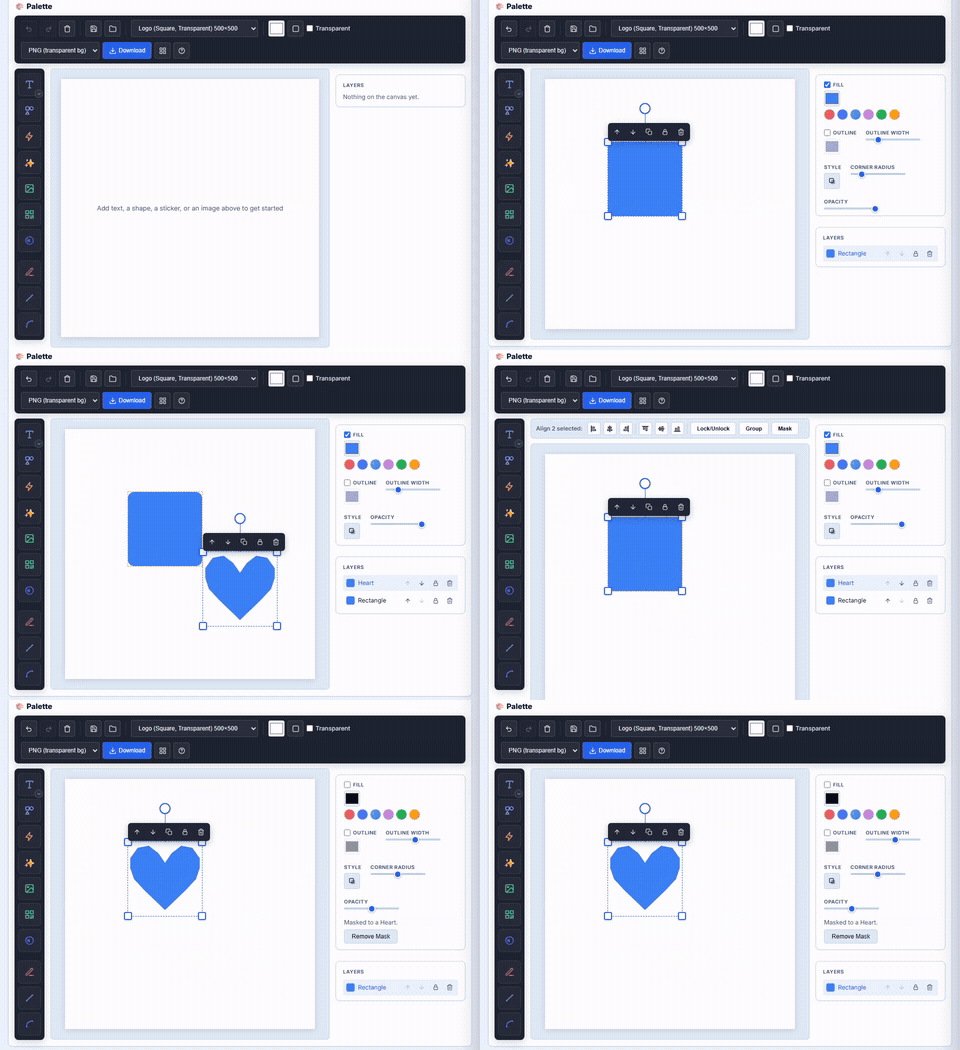
Masking an element to a shape outline in Palette
Masking

Masking

  1. Place a shape on top of the element you want to clip.
  2. Shift-click both elements so they're selected together.
  3. Click Mask — the top shape becomes the clip boundary and is consumed into the element below.
  4. Click Remove Mask in the right panel any time to undo it.
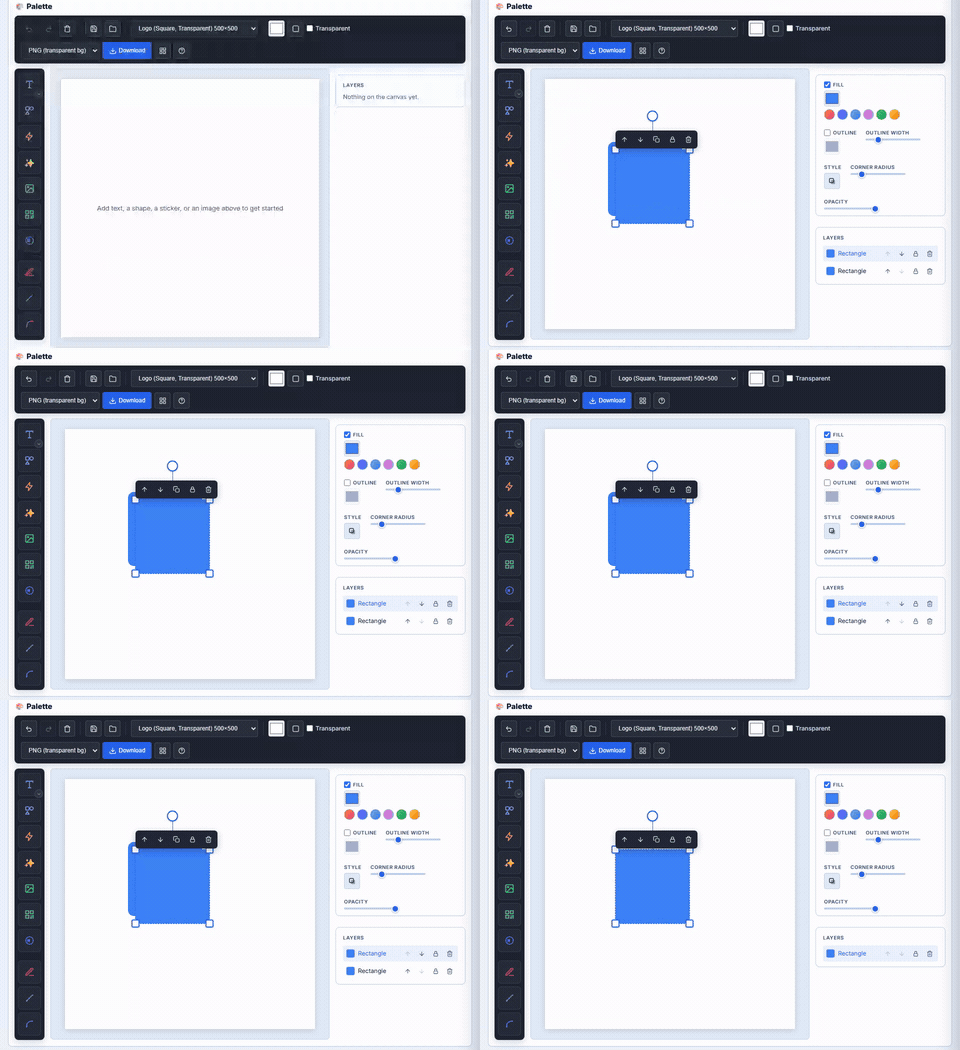
Reordering and locking elements from the layers panel in Palette
Layers panel

Layers panel

  1. The Layers list on the right shows every element, topmost first.
  2. Reorder with the up/down arrows, lock an element in place, or delete it directly from the list.

Working With Your File

Undo, redo, duplicate, and delete controls in Palette
Undo, duplicate, lock & delete

Undo, duplicate, lock & delete

  1. Ctrl+Z / Ctrl+Shift+Z undo and redo any change.
  2. Click an element to reveal its own floating toolbar — duplicate, lock, delete, and reorder buttons.
Saving a Palette project file and reopening it later
Save & reopen a project

Save & reopen a project

  1. Click the save icon to download your whole design as a project file.
  2. Click the open icon any time to load one back in and keep editing — or send the file to someone else to continue it.
Exporting a design as PNG or SVG in Palette
Export & Logo Kit

Export & Logo Kit

  1. Choose PNG or SVG from the format dropdown — PNG for photos and social posts, SVG for a fully scalable vector logo.
  2. Set a transparent background if needed, then click Download.
  3. Use Export Logo Kit for a one-click bundle of favicon, app icon, and social avatar sizes.

Every export is clean — no watermark, ever.

Advertisement